

Publish in WordPress. Find it in Usable.
Usable Sync copies the posts and pages you publish into your Usable workspace, so your team and the AI assistants you use with Usable can find them. When you change a post, its copy is updated. When you unpublish it, its copy is archived.
Your website's content, also in Usable
Your website already explains your services, your policies and the answers to common questions. This plugin puts that same information in your Usable workspace and keeps it up to date, so nobody has to copy it across by hand.
-
A copy of each post and page
Each published post or page becomes one entry in Usable: its title and text, plus its link, author, dates, categories and tags. Headings, lists, links and images are kept; layout and styling are left out.
-
Updated when you save
When you publish or update a post, its copy in Usable is updated straight away. If you prefer, the plugin can leave this to the hourly check instead.
-
Checks once an hour
Every hour, the plugin tries again for anything that failed and sends anything it missed. You don't have to do anything.
-
Brings over what you already have
One button on the settings page sends all the posts and pages you've already published. It works through them in small batches and skips anything that hasn't changed.
-
Shows you how it's going
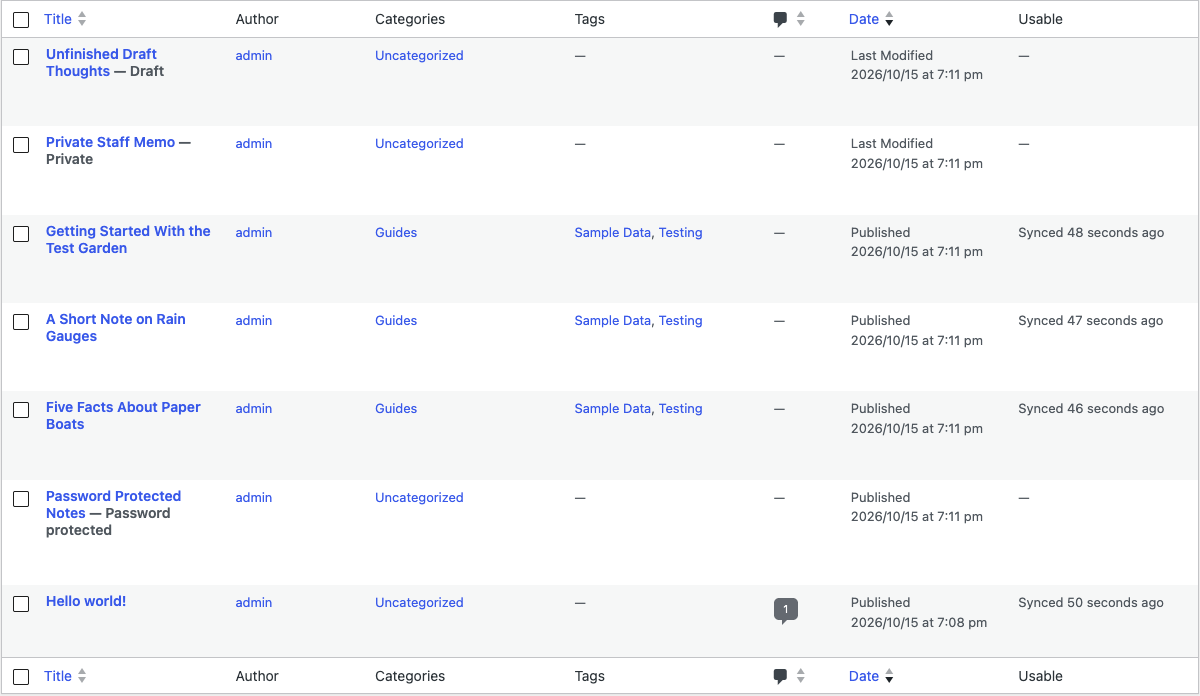
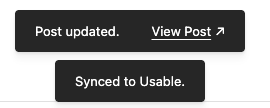
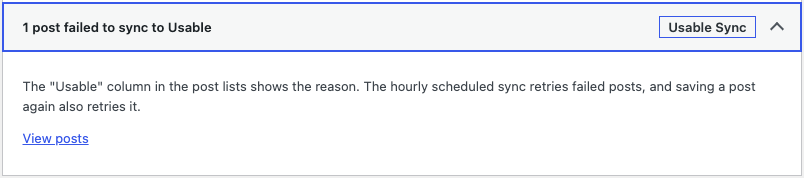
The post list, the editor and Tools → Site Health show whether each post has been sent. If something goes wrong, they tell you why.
-
Private stays private
Drafts, private posts and password-protected posts are never sent. If you unpublish a post, its copy in Usable is archived.
You keep working in WordPress
Nothing changes about how you write and publish. The plugin sends each public post to your Usable workspace and keeps that copy up to date. A post always updates its own copy, so you don't get duplicates.
Your WordPress site
You write and publish posts and pages as usual. You choose which kinds of content are copied.
The Usable Sync plugin
Turns each public post into plain text with a short header, and sends it when something has changed.
Your Usable workspace
One entry per post, which your team and the AI assistants you use with Usable can search.
What happens when you…
- Publish a post
- A copy is created in Usable.
- Change it
- The copy is updated. If nothing has changed, nothing is sent.
- Unpublish it, make it private, add a password, move it to the bin or delete it
- The copy is archived in Usable. Only that change of status is sent, not the post itself.
- Publish it again
- The same copy comes back.
- Do nothing
- Once an hour, the plugin tries again for anything that failed and sends anything it missed.
Our returns policy
You can return any item within 30 days of delivery, free of charge.
Synced to Usable. Usable · the copy active
--- source: "wordpress" wp_id: 482 post_type: "post" url: "https://example.com/returns/" author: "Anna" categories: - "Help" … --- # Our returns policy You can return any item within 30 days of delivery, free of charge.
You can always see what it has done
These are real screenshots from a test site. There is one settings page, and the status of each post shows up in the places you already use.

What is Usable?
Usable is a shared knowledge base for your organisation. You keep your procedures, decisions and answers to common questions in it, and your team and AI assistants can look things up there.
- Answers show their source, so you can check where they came from.
- People can read and edit everything in it.
- You decide who has access to each workspace.
- It isn't tied to one AI assistant. If you switch, your knowledge stays.
Why put your website in it? Your website is often the most up-to-date description of what you offer. With this plugin, your workspace has the same information, and keeps it current without anyone copying it across.
Only what is already public on your website
Nothing is sent to Usable until an administrator has entered and saved the Usable settings. After that, the plugin sends only to https://usable.dev, and only to the workspace you chose.
What is sent, for each public post
Only published posts without a password, of the kinds of content you chose in the settings.
- The title.
- The text, as Markdown, starting with a short header: the post's ID, type, slug, link, author name, status, publish and last-changed dates, categories and tags.
- A short summary, from the excerpt or the start of the text.
- Labels (tags):
source:wordpress,wp:site:with your site's address,wp:type:with the kind of post, and the post's category and tag slugs (the short names WordPress uses in web addresses). - A reference that ties the copy to this post on this site. It is made from a random ID for this installation, the site ID, the kind of post and the post ID.
- The workspace and fragment type from your settings.
What is never sent
- Drafts, private posts and password-protected posts.
- Kinds of content you haven't chosen in the settings.
- Any content before the settings are saved.
- The text of a post that is no longer public. Archiving its copy sends only the new status.
When it is sent
- When you save a post: when it is published, updated, unpublished, made private, given a password, moved to the bin or deleted. This is the default setting, “Immediate on Publish/Update”.
- In the hourly check, whichever setting you choose: posts that changed, failed or were never sent.
- When an administrator runs a full site sync, from the settings page or with the command
wp usable-sync sync. A trial run with--dry-runsends nothing.
The Test Connection button, and what every request includes
Before the settings are saved, the plugin contacts Usable only when an administrator clicks Test Connection. It then reads a few entries from the chosen workspace to check access, and, if no fragment type is saved, the workspace's list of fragment types. No post content is sent.
Every request includes your Usable token. Like every request WordPress makes, it also includes WordPress's standard “User-Agent”, which holds the WordPress version and your site's address, for example WordPress/7.1.3; https://example.com.
Usable is run by Usable Sp/f. Its Terms of Service and Privacy Policy apply to what is sent.
How to install it
It takes a few minutes. You install it like any other plugin that doesn't come from the WordPress plugin directory: by uploading a zip file.
Before you start, you need
- An administrator login for your WordPress site.
- WordPress 6.8 or newer and PHP 8.1 or newer. PHP is the language your website runs on; you can see its version under Tools → Site Health → Info → Server, or ask your web host.
- A Usable account and a workspace for your website's content. Create an account.
- A Usable access token: a kind of password that lets the plugin into that workspace. Create one in Usable under Account → API Tokens. Give it access to the workspace, with permission to read, create and update fragments and to read the workspace.
- The workspace's ID. It is the long code in the workspace's web address in Usable:
usable.dev/dashboard/workspaces/ID.
usable-sync.zip · version 0.1.1
eee4192dc7c414d6419441c3fc995ab24994dedd97caa6eb0fa929c5f66da91e Download
usable-sync.zipabove. Don't unzip it: WordPress needs the zip file. (Safari on a Mac may unzip it for you. If that happens, right-click the folder and choose Compress to get the zip back.)In WordPress, go to Plugins → Add New Plugin → Upload Plugin, choose the zip file, click Install Now, then Activate Plugin.
Go to Settings → Usable Sync. Paste your access token and the workspace ID, then click Save Changes.
Click Test Connection. When it says “Connected”, it has also filled in the fragment type for you. Click Save Changes again.
Choose which kinds of content to copy (posts, pages and so on) and when to send them, then save.
To send the posts and pages you've already published, click Run Full Site Sync and keep the page open until it finishes. From then on, new and changed posts are sent by themselves.
For developers: WP-CLI
Install with wp plugin install usable-sync.zip --activate. Run wp usable-sync sync --dry-run to count what a full sync would send without sending anything, then wp usable-sync sync. Use --post-type=page to limit it, and --force to resend unchanged posts.
To update to a new version, download the new zip and upload it the same way; WordPress asks whether to replace the current version. Your settings are kept.
Common questions
Do I need a Usable account?
Yes. The plugin copies your content into a Usable workspace, so you need a Usable account, a workspace and an access token. Create an account, and see Usable's plans. The plugin itself is free.
Does it change my website?
No. Your visitors see exactly the same website. The plugin only adds its settings page, a Usable column in your post lists, a notice in the editor and a check in Site Health.
Will it slow down my site?
Not for visitors. When you save a post, WordPress waits while the post is sent: under a second in our tests. If Usable is slow to answer, the plugin stops waiting after 15 seconds and tries again in the next hourly check. If you'd rather not wait, choose “Scheduled Batch via WP-Cron” in the settings, and posts are sent by the hourly check instead.
Nothing arrives in Usable. What should I check?
Open Tools → Site Health. It tells you if a setting is missing, which posts failed, and which posts are waiting for the next hourly check. The Usable column in your post list shows why a post failed. The Test Connection button on the settings page checks the token and the workspace.
The hourly check doesn't seem to run.
WordPress runs its scheduled tasks when someone visits your site, so a site with very few visitors can fall behind. Some hosts also switch this off (with a setting called DISABLE_WP_CRON). In both cases, ask your web host to set up a “cron job” that runs wp cron event run --due-now (or calls wp-cron.php) every few minutes.
Can several websites use one workspace?
Yes. Each installation of the plugin has its own ID, so their entries don't get mixed up. A copy of a site, such as a staging copy, has the same ID as the original, so connect each copy to its own workspace.
What happens if I deactivate the plugin?
It stops sending, and the hourly check is switched off. Your settings, each post's status and the copies in Usable are kept, so if you activate it again, it carries on where it left off.
What happens if I delete the plugin?
Deleting it removes everything it stored in WordPress: its settings, including the saved access token and the installation's ID, the status it kept for each post, and its hourly check. On a multisite network this happens on every site. Deleting doesn't contact Usable, and the copies in your workspace stay there; archive or delete them in Usable if you no longer need them.
To have the plugin archive them for you instead, do this before deleting: untick every kind of content under Settings → Usable Sync → Post types, and let the hourly check archive them (up to 25 posts per hour). If you install the plugin again later, it gets a new ID, so it creates new copies.